

Description
SUBSCRIPTION LICENSE – ONE YEAR NON-FLOATING
Description:
This license allows you to use the script on a single machine for ONE YEAR.
✅ Full feature access
✅ Cost-effective one year usage
🔒 Bound to one system (non-transferable)
💡 Great for individuals or studios working on a dedicated machine
- To activate the tool, a license is required. Please follow the steps below to generate and send your Response Key:
- 1. Unzip the AutoFootLock.zip file.
- 2. Inside, you’ll find a file named install.mel.
- 3. Drag and drop install.mel into your Maya viewport. This will add an icon to your shelf.
- 4. Click the newly added icon. A window will appear displaying your Response Key.
- 5. Email this Response Key to animfxtools@gmail.com to receive your one year license.
- Looking forward to your Response Key.
Auto Foot Lock Tool for Maya – Explanation https://youtu.be/Yqc7o_Oc5Nc
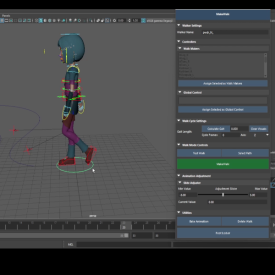
This Python script creates an “Auto Foot Lock” tool for Autodesk Maya that helps animators lock a character’s feet to the ground during specific frames of animation. Here’s what it does and how to use it:
1. Automatic Foot Locking:
– Detects when a foot controller reaches a certain position (like touching the ground)
– Automatically locks the foot in place during those frames
– Works with both translation and rotation attributes
2. Two Operation Modes:
– Auto Mode: Automatically detects when to lock based on attribute values
– Manual Mode: Lets you specify exact frame ranges to lock
How to Use the Tool
Auto Mode (Recommended for most cases):
1. Select your foot controller in Maya
2. In the Auto Mode tab:
– Set the frame range to analyze (defaults to playback range)
– Choose which attribute to monitor (like translateY for up/down movement)
– Set the target value (like 0 for ground level) and tolerance
– Optionally choose which axes to skip (like locking position but not rotation)
3. Click “Detect Frames” to find when the foot touches the ground
4. Review the detected frame ranges in the dropdown
5. Click “Lock Foot” to apply the locking
Manual Mode (When you need precise control):
1. Select your foot controller
2. In the Manual Mode tab:
– Navigate to the start frame and click “Set Start”
– Navigate to the end frame and click “Set End”
– Choose which axes to skip
3. Click “Lock Foot” to lock the foot for that exact frame range
Technical Details
The tool works by:
1. Creating temporary locators at the foot’s position when locked
2. Using constraints to maintain that position
3. Baking the animation to preserve the locked state
4. Cleaning up temporary objects automatically
Benefits for Animators
– Saves time by automating foot locking
– Maintains natural foot placement during walks/runs
– Prevents foot sliding artifacts
– Works with existing animation without destructive changes
– Provides visual feedback before applying changes
The interface is designed to be intuitive with clear sections for each function, and the tool handles all the technical aspects behind the scenes.



Anim Props –
Brilliant!